Liquidity Heatmap: Complete Setup Guide
This guide covers how to configure, read, and trade with the Liquidity Heatmap indicator. You will learn what each setting controls, how to interpret the color-coded zones on your chart, and how to combine the heatmap with multi-timeframe analysis for higher-probability entries.
What It Does
By the end you should be able to tune the block size and percentile filter to match your trading style, distinguish between volume-weighted and candle-count modes, and use the higher-timeframe projection to spot institutional liquidity clusters that are not visible on your current chart alone.
Key Features
Liquidity Concentration Mapping
Analyzes trading activity across price levels and identifies where the highest concentrations of volume and candle interaction exist.
Smart Filtering
Filters out low-significance levels and displays only the most meaningful liquidity clusters, keeping the chart clean and actionable.
Multi-Timeframe Projection
Runs the entire liquidity analysis on a configurable higher timeframe and projects the results onto your current chart for cross-timeframe insight.
Intensity Color Gradient
Color-coded from green (support below price) to red (resistance above), with multiple intensity tiers for the strongest concentration zones.
In Action
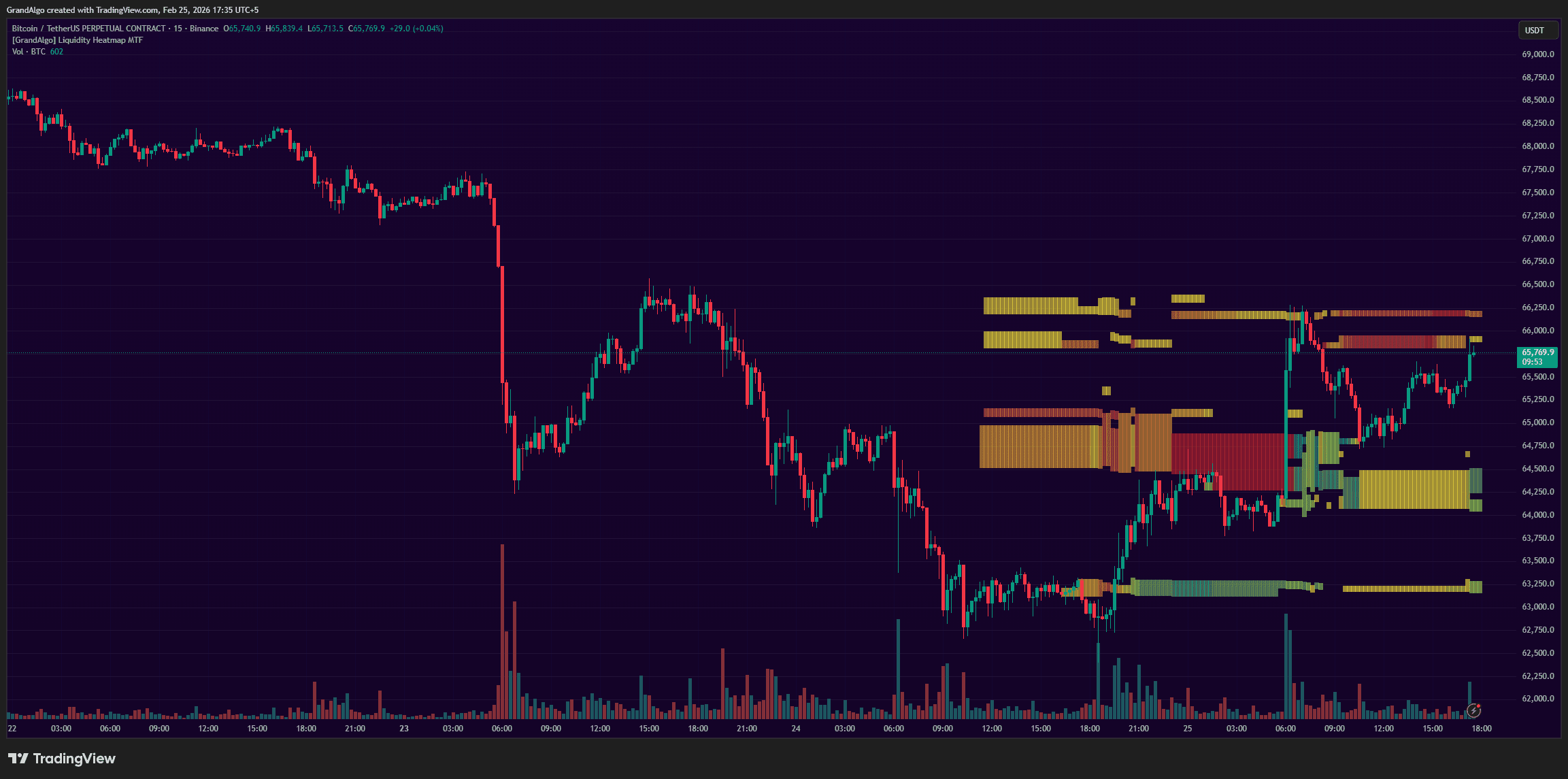
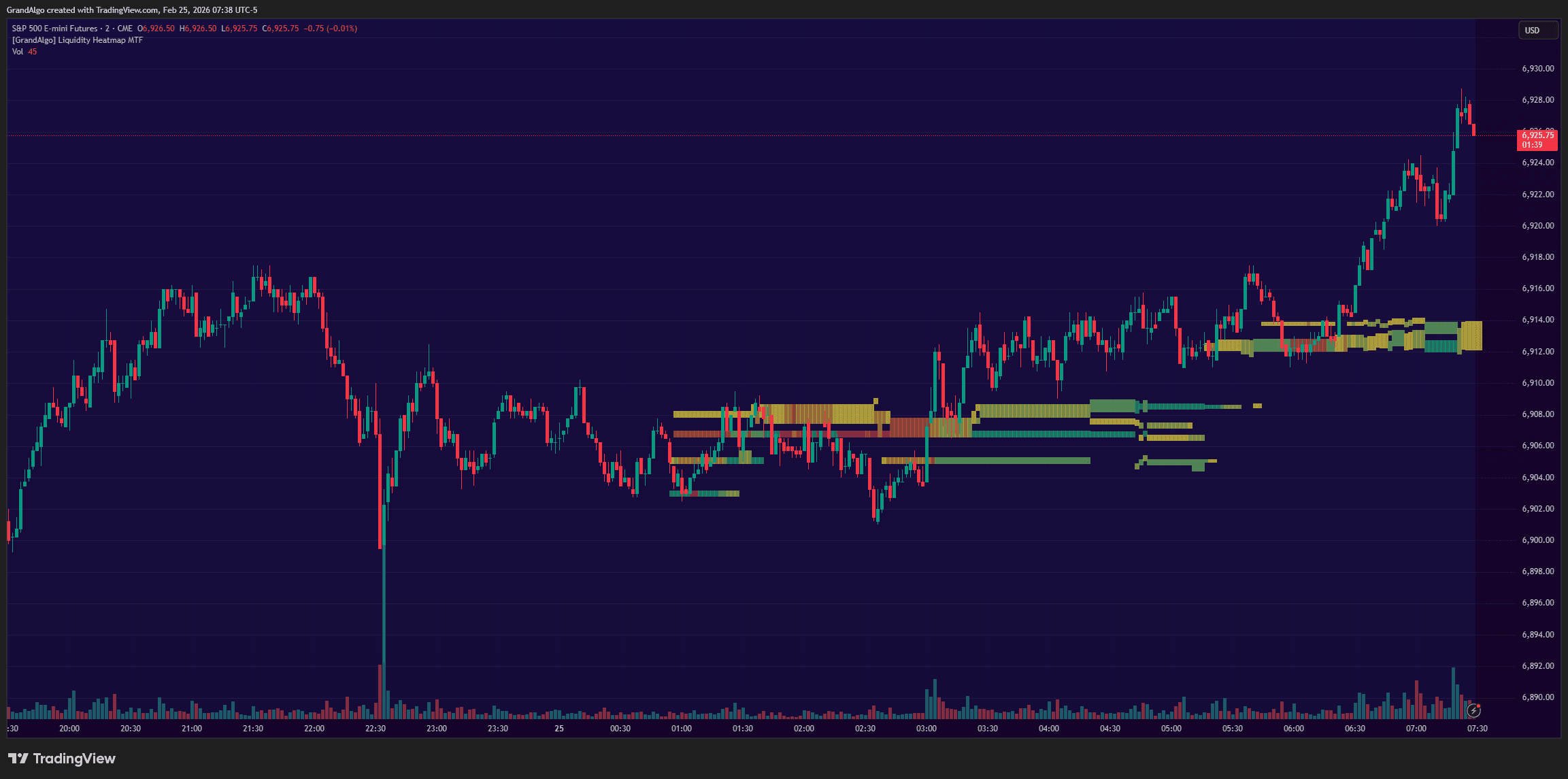
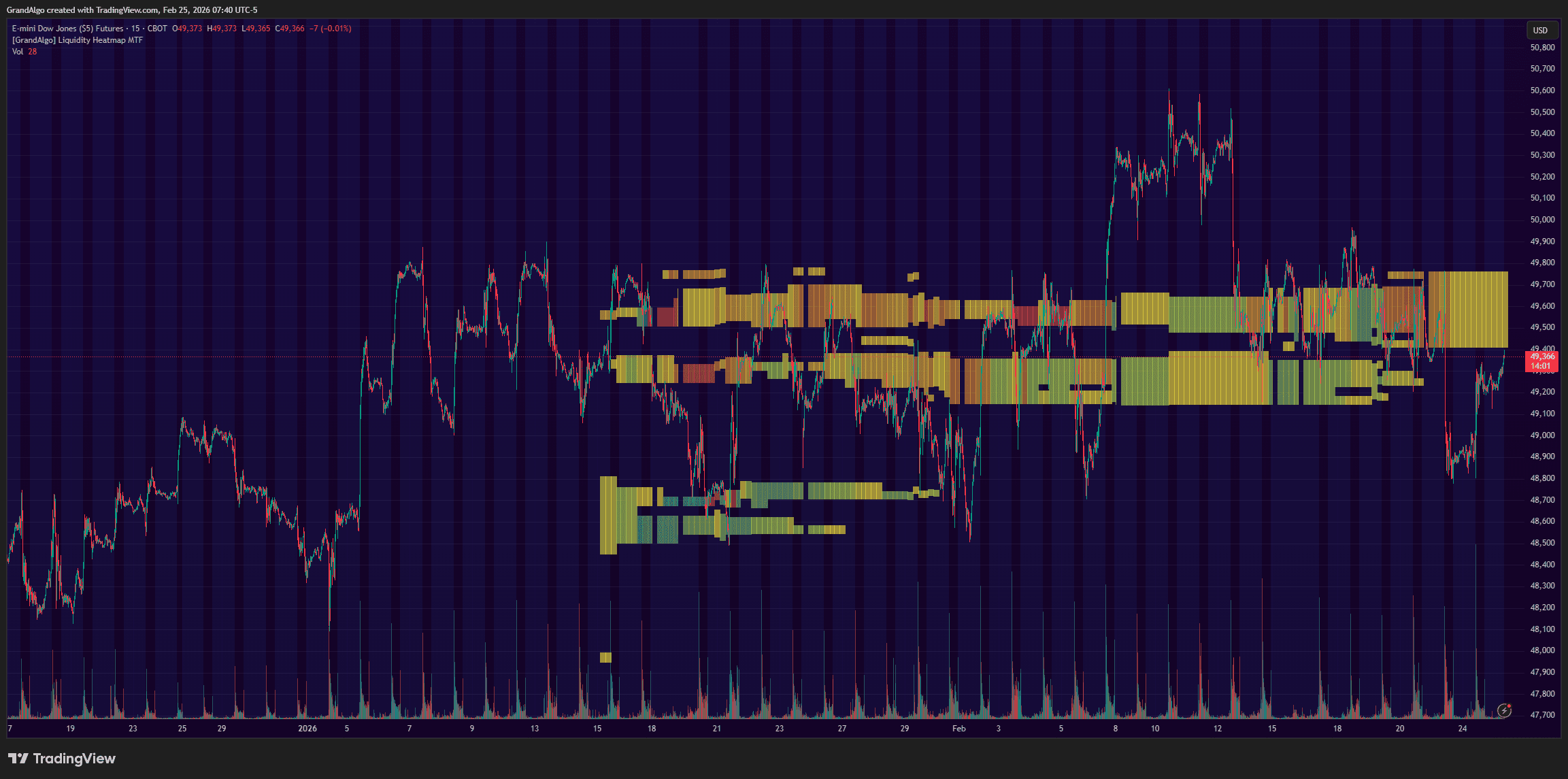
Liquidity Heatmap applied across different markets.
Settings & Parameters
Key settings you can configure in TradingView.
| Parameter | Type | Default | Description |
|---|---|---|---|
| Liquidity Filter | int | 85 | Percentile threshold for displaying zones. At 85, only the top 15% of liquidity concentrations are shown. Lower values show more zones. |
| Block Size | string | Large | Controls the grid resolution: Large for broader zones, Medium for moderate detail, Small for fine-grained price levels. |
| Volume-Based Cloud | bool | true | When enabled, evaluates liquidity based on volume concentration. When disabled, uses candle count within each zone. |
| Lookback Period | int | 300 | Number of past candles to analyze. Larger values capture more history but may include less relevant older data. |
| Higher Timeframe | timeframe | 60 | Runs the liquidity analysis on this timeframe and projects results onto your chart. |
How to Use It
Read the Color Coding
Green zones below the current price represent support liquidity where buyers are concentrated. Red zones above represent resistance liquidity where sellers are waiting. The brighter the color, the stronger the concentration.
Identify High-Liquidity Clusters
Look for the brightest, most concentrated zones near the current price. These represent areas where the most trading activity has occurred and where price is most likely to react.
Use as Target Zones
Price tends to gravitate toward high-liquidity areas. Use the brightest zones as potential profit targets for your trades, as price often stalls or reverses at these concentrations.
Apply Multi-Timeframe Context
Set the Higher Timeframe input to see where liquidity exists on broader time horizons. This reveals the bigger picture of where institutional liquidity pools are positioned.
Best Practices
Keep the Filter High
The default 85 percentile filter ensures only the most significant zones appear. Lowering it too much creates visual noise that defeats the purpose of the heatmap.
Use Volume-Based Mode in Liquid Markets
For high-volume markets like BTC, ES, or major forex pairs, volume-based analysis gives the most accurate liquidity picture. Switch to candle-based for lower-volume instruments.
Adjust Block Size to Your Chart
Large blocks work well on higher timeframes for a broad liquidity overview. Switch to Small on lower timeframes for more precise zone identification.
Related Indicators
Related Articles
Ready to Start Trading?
Get access to Liquidity Heatmap alongside all 18 premium indicators.